
Screenshots
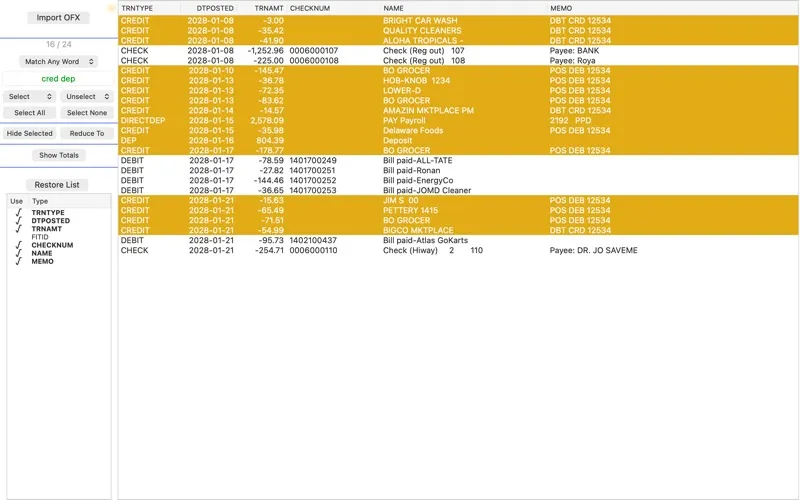
About OFXTrxList
OFXTrxList allows ad hoc searching and totaling of transactions downloaded from your bank.
Most checking and savings account transactions can be downloaded to OFX-formatted text files (OFX, QFX, QBO) or QIF. These files may contain additional information to the XLS and CVS downloads. This app will attempt to import transactions from any file you select in the Finder. It does not verify the file's format, but looks for transactions using the OFX "STMTTRN" separator, and shows a column view of the transactions it finds. In the case of QIF, the app displays "!Type:Bank" transactions.
These columns usually include a transaction's type, amount, date, name, etc., in columns with the OFX names "TRNTYPE", "TRNAMT", "DTPOSTED", "NAME", and so on. Any transaction type included in an imported transaction will be displayed. Uncheck the "Use" cell in the "Use | Type" box at the left to hide unwanted columns. Click the "Restore List" button to restore the list's original contents and display any column changes.
This app only displays the data and does not make any changes to it. Hidden rows will be brought back by clicking the "Restore List" or "Import OFX" buttons.
Searching can highlight and unhighlight rows. Click the "Show Totals" button to display totals for the highlighted rows. Columns with names ending in"AMT" will be totaled.
For example, a search can highlight a month's displayed transactions and an additional search can then unhighlight the rows containing a payee. The totals button will display the totals of the highlighted rows at any point in the search sequence.
Searching can be set to match only the cells that contain all the search words, match cells containing any of the search words, or match cells containing the search words as a single phrase. Rows can all be highlighted and unhighlighted at once by clicking the "Select All" and "Unselect All" buttons. They can also be highlighted individually by clicking, shift-clicking, and command-clicking, with or without using the arrow keys.
The number of rows displayed in the list can be reduced using the "Hide Selected" and "Reduce To" buttons. "Hide Selected" hides the highlighted rows. "Reduce To" reduces the displayed rows to ones the currently highlighted.
The Edit menu provides two ways to copy the contents of the highlighted rows. "Copy" copies only the rows' contents, and "Copy With Headers" will include the column titles. The copied text is tab-delimited and can be pasted into a word processor, spreadsheet, or other text-compatible app. Right-Click a cell to copy the contents of all highlighted cells in the clicked column.