
Screenshots
About Quick Data Insights
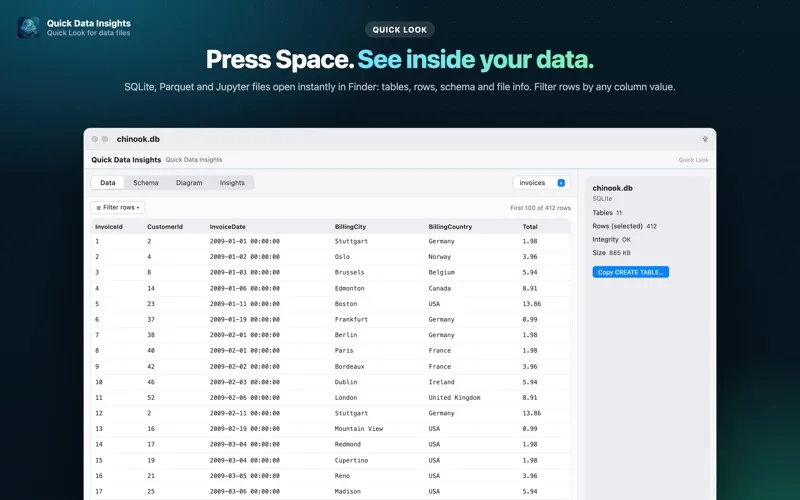
Press Space in Finder and see what's inside your data files, without opening a database tool, a notebook server or a terminal.
Quick Data Insights adds Quick Look previews for SQLite databases, Apache Parquet files and Jupyter notebooks. It works offline, needs no account, and never changes your files.
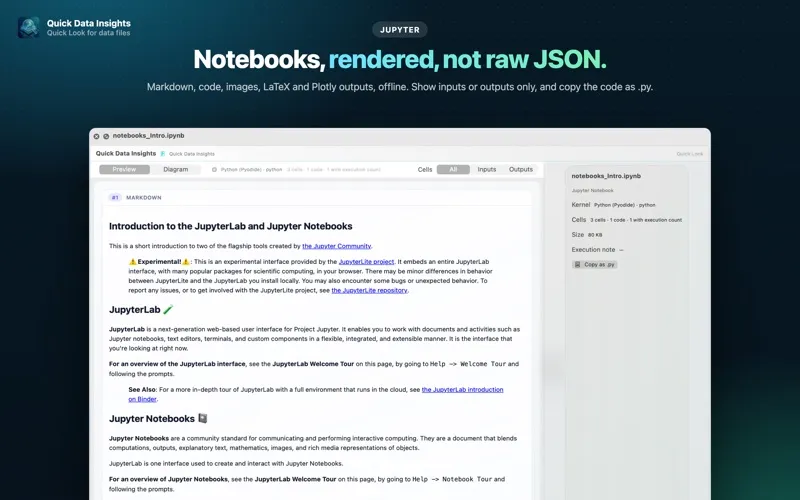
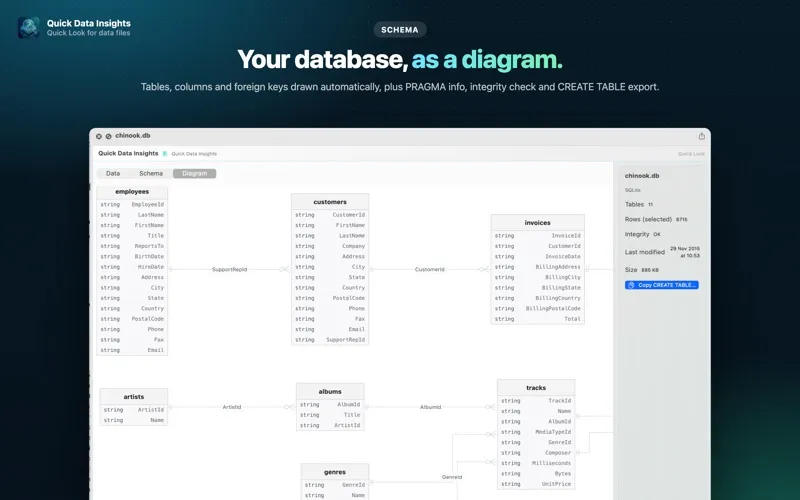
FREE • SQLite (.sqlite, .sqlite3, .db): switch between tables, see the first 100 rows, filter them by column value, browse the schema, foreign keys and PRAGMA info, check integrity, and copy CREATE TABLE statements. • Automatic ER diagrams: tables, columns and relationships drawn for you. • Apache Parquet: schema, row groups, writer info and the first 100 rows, read efficiently from the file footer, so even large files open fast. • Jupyter notebooks (.ipynb): Markdown, code, images, LaTeX and Plotly outputs rendered like a real notebook, not raw JSON. Show inputs or outputs only, and copy the code as a .py script. • Light and dark mode, Apple silicon native, 100% local.
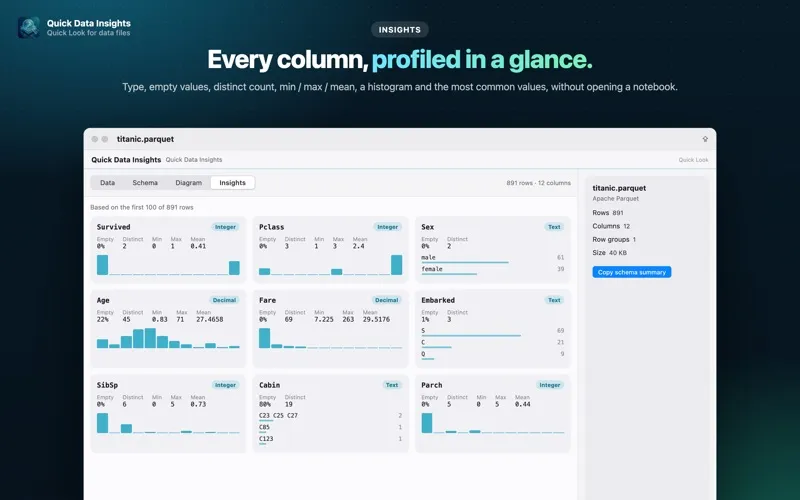
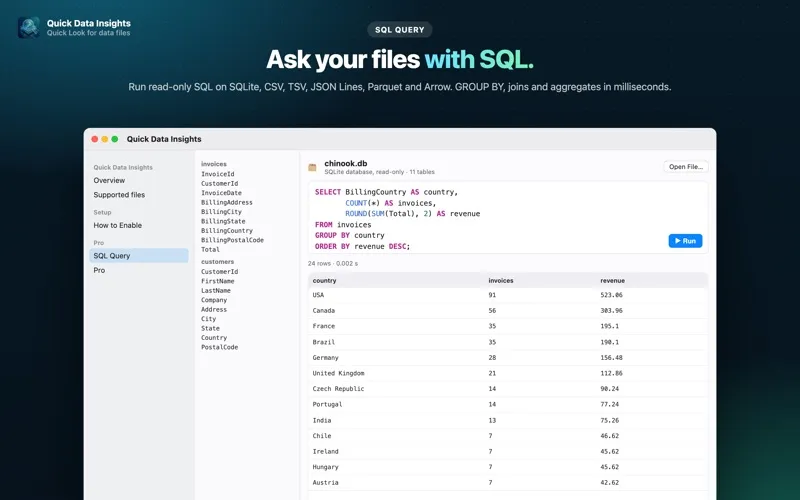
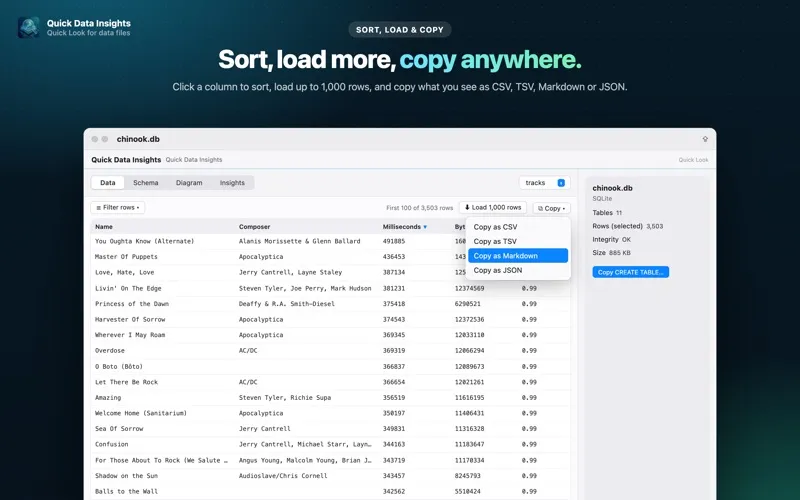
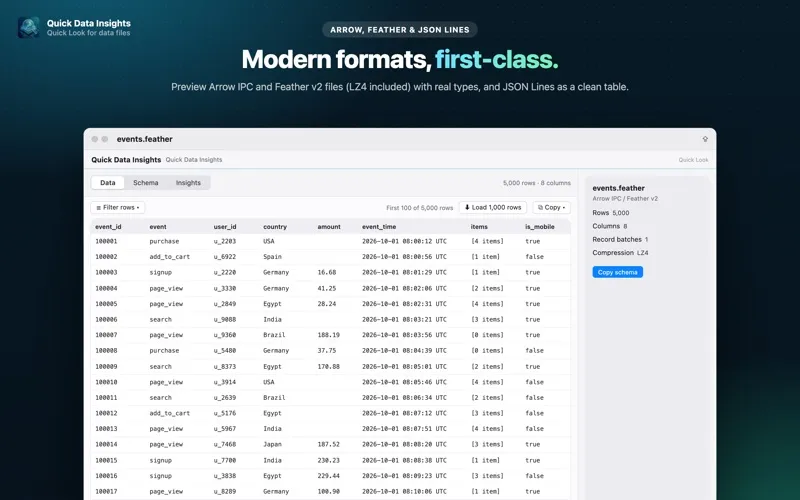
PRO: ONE-TIME PURCHASE, NO SUBSCRIPTION • Insights: profile every column at a glance: type, empty values, distinct count, min / max / mean, a histogram and the most common values. • SQL Query: open a SQLite, CSV, TSV, JSON Lines, Parquet or Arrow file and run read-only SQL: filters, GROUP BY, joins and aggregates. Non-SQLite files are loaded into a table you can query instantly. • Sort, load more, copy: click a column to sort, load up to 1,000 rows, and copy what you see as CSV, TSV, Markdown or JSON. • Apache Arrow & Feather: preview Arrow IPC files and streams and Feather v2 files, including LZ4-compressed ones, with real column types. • JSON Lines (.jsonl, .ndjson): see records as a clean table, with keys as columns.
Try Pro free for 7 days. The trial never charges you; when it ends, Pro features lock again and everything free keeps working.
PRIVACY Everything runs on your Mac. No network access for your files, no analytics, no tracking, no account.
HOW TO START Open the app once, enable the extension in System Settings > General > Login Items & Extensions > Quick Look, then select a file in Finder and press Space.