PDF Editor
Fill, Sign & Edit
PDF Editor lets you fill, sign, and annotate PDF documents. It suits you if you regularly need to add information or visual notes to work, school, or personal paperwork.
by Minham Samuel
What you get
You get PDFs filled, signed, and marked up for your next step.
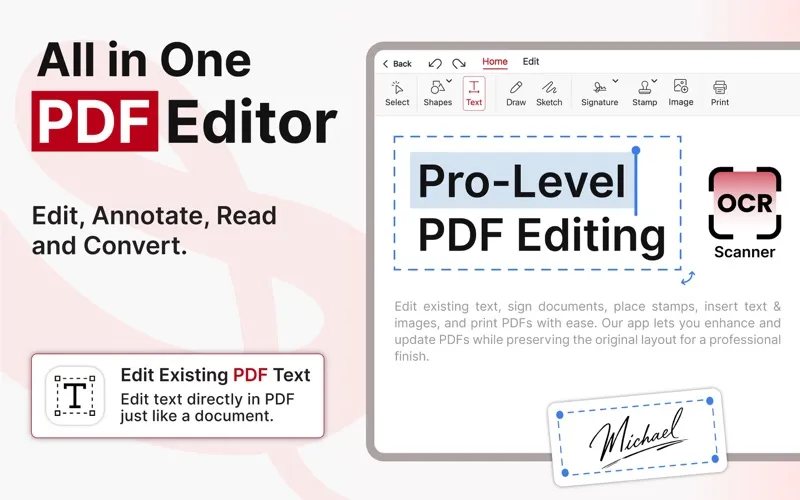
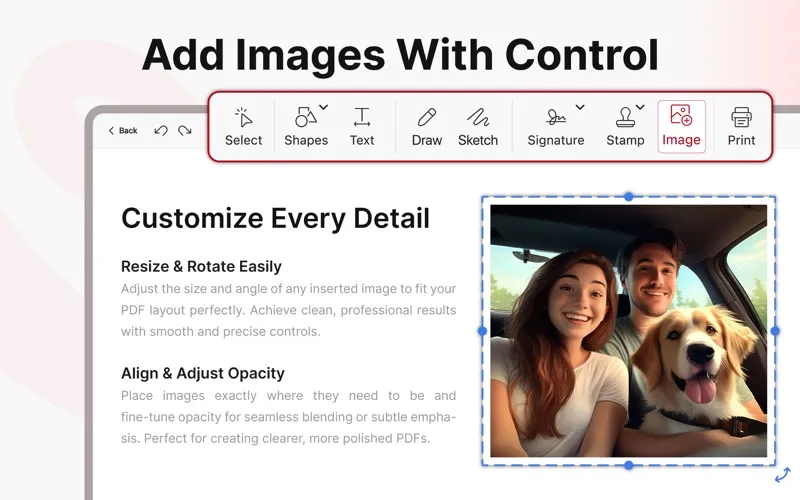
You can use PDF Editor to fill in documents, add signatures, and put extra information directly onto PDF pages. When a document needs more context, you can add text, insert an image, or use shapes to draw attention to a particular area. That gives you ways to explain what matters within the document itself.
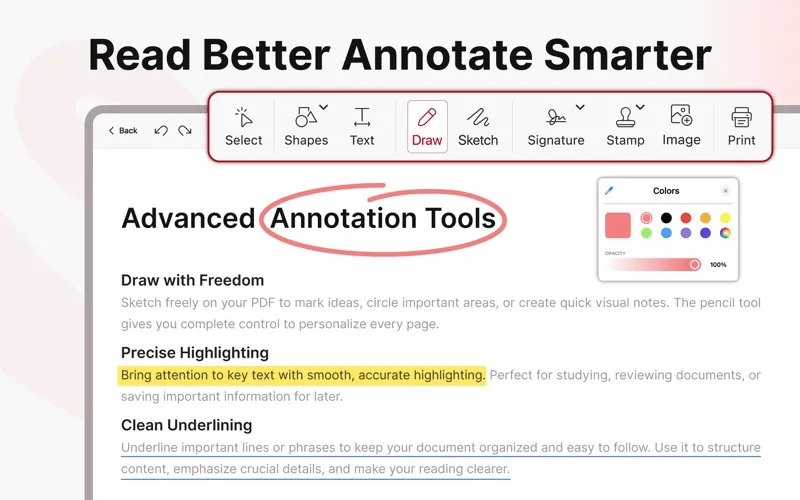
For work paperwork, class materials, or personal forms, you can combine typed additions with drawings and visual annotations. You might add a written note beside a passage, place an image where it is needed, or draw around a section you want to revisit. The focus is on completing and marking up PDFs you already have.
-
Complete your paperwork
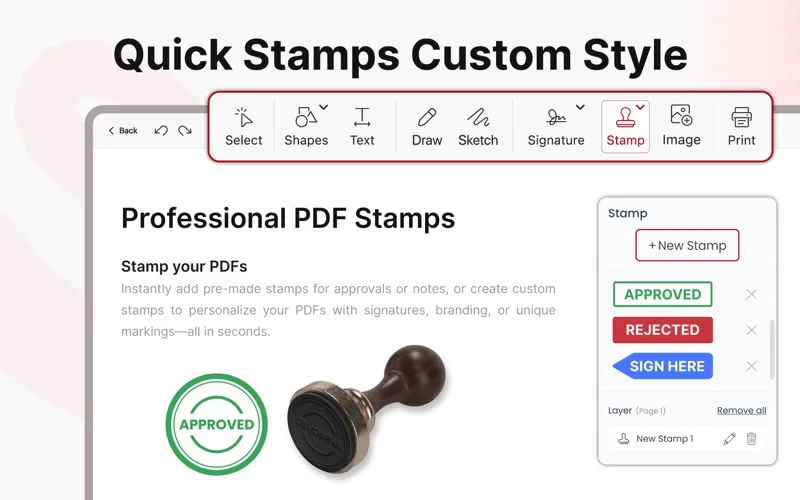
You can fill and sign PDFs when documents need your information or signature.
-
Put explanations in context
You can add text directly to a PDF so your notes sit alongside the relevant content.
-
Direct attention visually
You can use shapes and drawings to point out sections that need attention.
-
Add visual context
You can insert images into PDF pages when text alone does not explain enough.
Best for
- You regularly fill and sign PDF paperwork
- You annotate class materials
- You add notes and images to work documents
Skip it if
You do not need it if you only read PDFs and never fill, sign, or annotate them.
Screenshots
From the developer
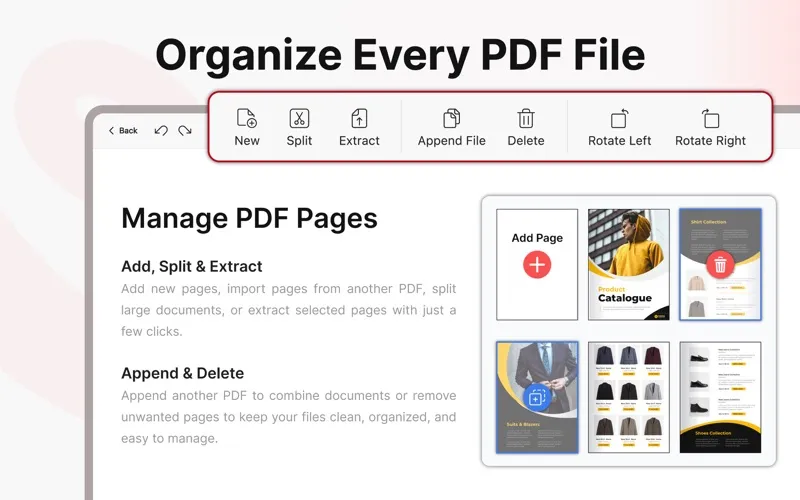
"Edit PDFs Like a Pro." Meet Our PDF Editor, a feature-rich and user-friendly application designed to empower users with seamless document management and customization. With its advanced features, you can effortlessly Add Text, Shapes, Images and Draw within PDF files, ensuring precise and polished content.Read the full description
Alternatives to PDF Editor
Other apps to edit, sign & annotate PDFs. See all
 Nitro PDF Pro
Work with your PDFs
Setapp
89% · 3,106 ratings
Nitro PDF Pro
Work with your PDFs
Setapp
89% · 3,106 ratings
 PDF Owl
Build the table of contents using on-device AI. Plus a reader-focused PDF viewer
Sold separately
PDF Owl
Build the table of contents using on-device AI. Plus a reader-focused PDF viewer
Sold separately
 PDF Office
Acrobat Pro Expert
Mac App Store
PDF Office
Acrobat Pro Expert
Mac App Store
 PDF Reader
PDF Editor,Convert
Mac App Store
PDF Reader
PDF Editor,Convert
Mac App Store
 PDF Reader for Adobe PDF
Mac App Store
PDF Reader for Adobe PDF
Mac App Store
 PDF Reader Pro
Read & Edit
Mac App Store
PDF Reader Pro
Read & Edit
Mac App Store