Quick Access for Dropbox
Quick Access for Dropbox lets you work with your Dropbox files in Finder. It suits you if you prefer familiar Mac folders to uploading and organizing files on the web.
by 满 李
What you get
You can work with Dropbox files directly in Finder.
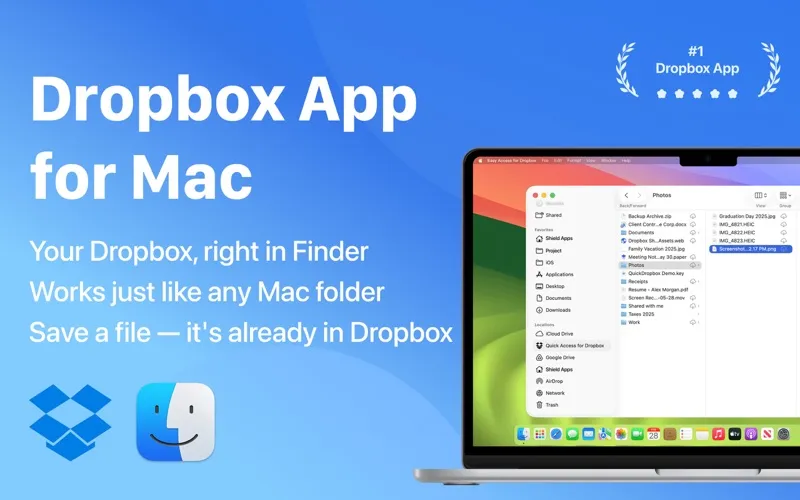
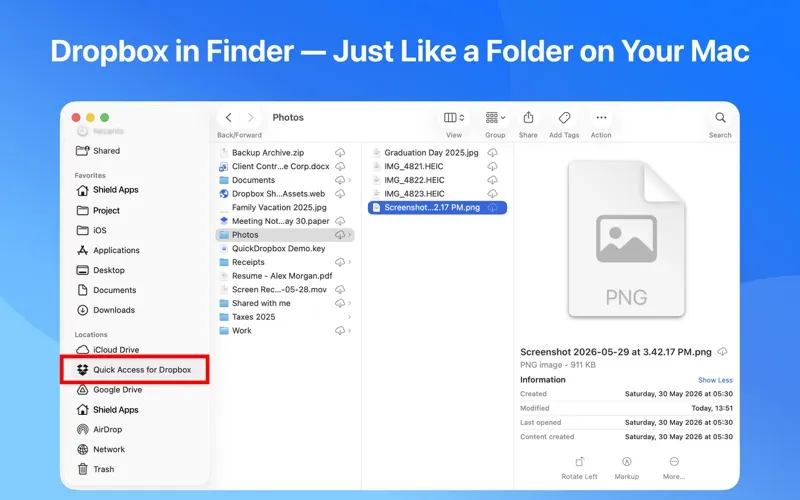
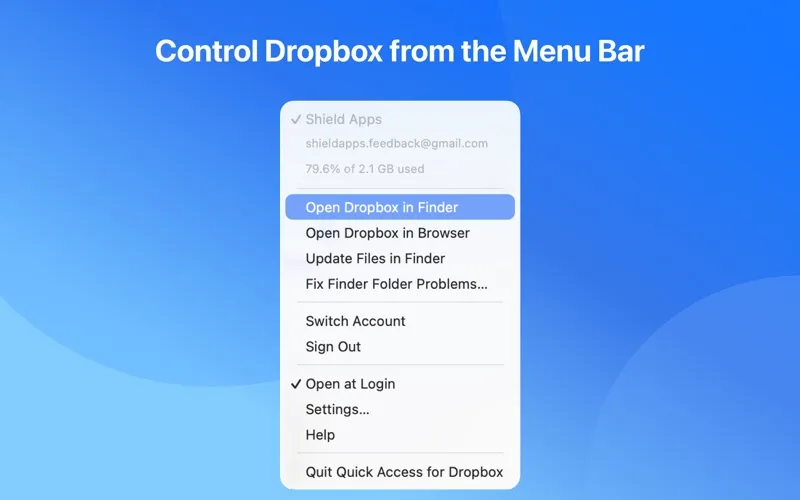
You get your Dropbox account in Finder’s sidebar, so you can handle cloud files with the same shortcuts you use for local folders. Drag in photos, documents, or entire folders to upload them, then rename, move, or delete items without switching to the Dropbox website. When you edit a document stored there, saving it sends your changes to Dropbox without a separate upload step.
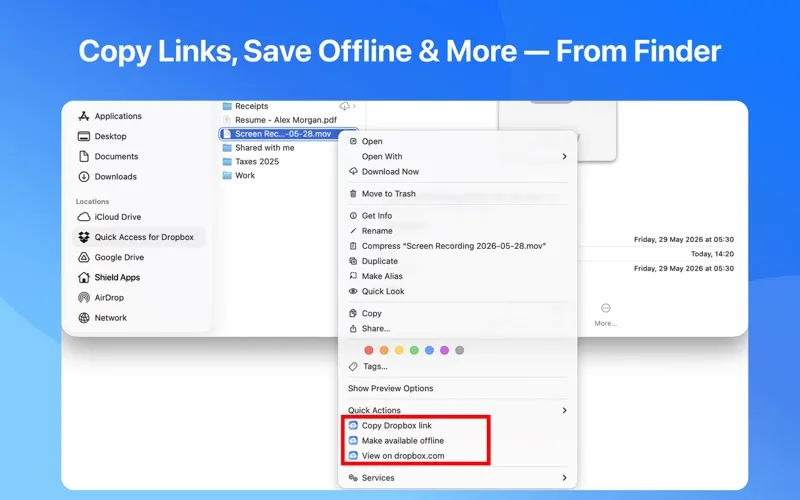
You can browse your account without downloading everything to your Mac. Open a file to download it, keep selected files available offline, or leave others online-only to save local storage. Files added or changed through Dropbox on another device also appear in Finder. You can search by filename within folders you’ve already opened.
You need a Pro upgrade to use Dropbox in Finder; downloading the app and signing in are free. You can choose an annual subscription or a one-time lifetime purchase.
-
Stay in Finder
You can upload, open, move, and organize Dropbox files using familiar folders and keyboard shortcuts.
-
Skip manual uploads
When you save edits to a document in your Dropbox folder, your changes go to Dropbox without another upload step.
-
Choose what stays local
You can keep selected files offline and leave the rest online-only, without downloading your entire account.
-
See changes across devices
You can access files added or updated through Dropbox on your phone, the web, or another computer from Finder.
Best for
- You prefer managing Dropbox files in Finder
- You have a large Dropbox account and limited local storage
- You edit cloud documents and want to avoid manual uploads
Skip it if
You don’t need it if your existing Dropbox setup already gives you the Finder access and offline controls you want.
Screenshots
From the developer
Your Dropbox folder, right in Finder — just like Documents or Downloads. Drag files in to upload. Double-click to open. Rename, move, and organize with the shortcuts you already know. Why Choose Quick Access for Dropbox?Read the full description
Alternatives to Quick Access for Dropbox
Other apps to connect cloud storage & servers. See all